Ask for a Budget

Blog

Our latest updates
Reading time
9
min

Google Play Console developer account verification for organizations

A practical, step-by-step guide to complete developer account verification (organization) in Google Play Console, avoid restrictions, and prepare the account to publish apps.
February 22, 2026

"Creating the account is only the beginning. To publish safely, verification needs to be complete."

If your company created a Google Play Console account and stopped there, you’ll likely hit roadblocks when it’s time to publish or update an app.

Google requires developers to complete a verification process. For organizations, the process is more thorough because it involves confirming company details and submitting official documents. If you leave it to the last minute, you can end up with pending items that delay publishing—or, in the worst case, account restrictions.

This content was organized based on an official Google Play guide for Organization accounts (October 2024 edition) and structured as a checklist to make execution easier.

In this post, I’ve organized the process into a simple step-by-step, with a checklist and common fixes. The goal is for you to look at the account and be able to answer: “Is it 100% verified and ready to publish?”

Official quick access: Open Google Play Console.
Cover of the verification guide for organizations

What you’ll see here

  • What changes when the account type is “Organization”
  • Preparation checklist (what to gather before you start)
  • Step 1: organization details (D-U-N-S, payments, contacts, and public profile)
  • Step 2: document upload (company + authorized representative)
  • Step 3 (if applicable): merchant payment method verification
  • Common errors and how to fix them without stress
  • Final checklist to confirm everything is OK

Before anything: why do this now (and not on launch day)

The verification flow usually appears as a notice on the Play Console home page, with a deadline. In general, you can start verification up to 60 days before the deadline shown in the console.

Here are 3 points that are worth their weight in gold:
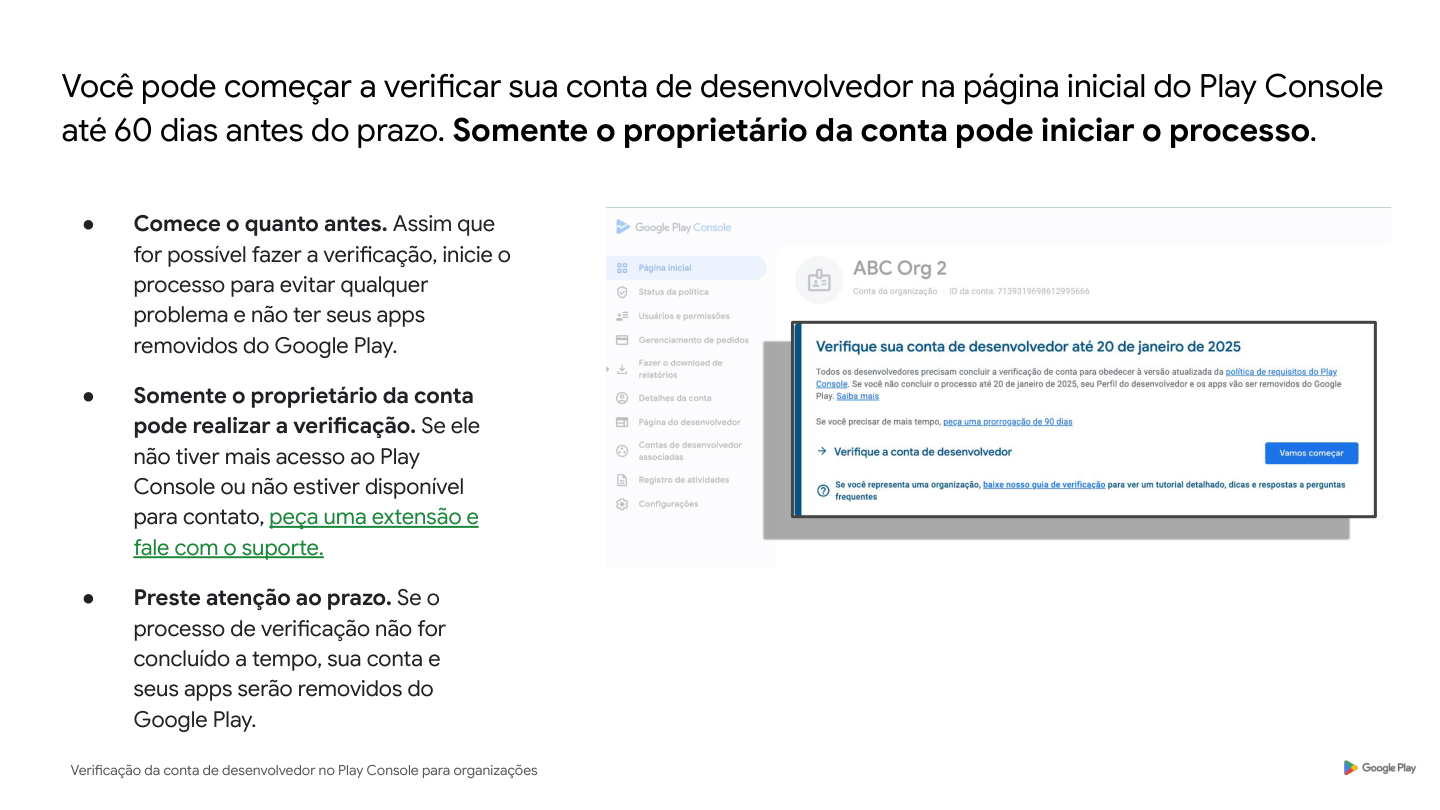
  1. Only the account owner can start/complete verification. If the person who created the account is no longer at the company or no longer has access, you need to solve that first.
  2. Start as early as possible. The process may involve checks and document review that take time.
  3. Missing the deadline can lead to account restrictions. In practice, that turns into urgency, quick fixes, and rework.
Verification notice on the home page

Preparation checklist (gather this before you click “Verify”)

Before starting the flow, gather:

  • Legal name and address of the company (exactly as shown in official records).
  • The organization’s D-U-N-S number (when applicable).
  • A “private” email and phone number for Google to contact the company (validated via OTP).
  • A “public” developer email and phone number (shown on the Google Play profile and also validated via OTP).

Two practical recommendations:

  • Use institutional, team-accessible contact details, not a temporary personal phone.
  • Make sure whoever will receive OTP (SMS/call) and emails is available during the process.

If you don’t have all of this on hand yet, Play Console may allow you to request an extension of the deadline (when that option is available on the notice).
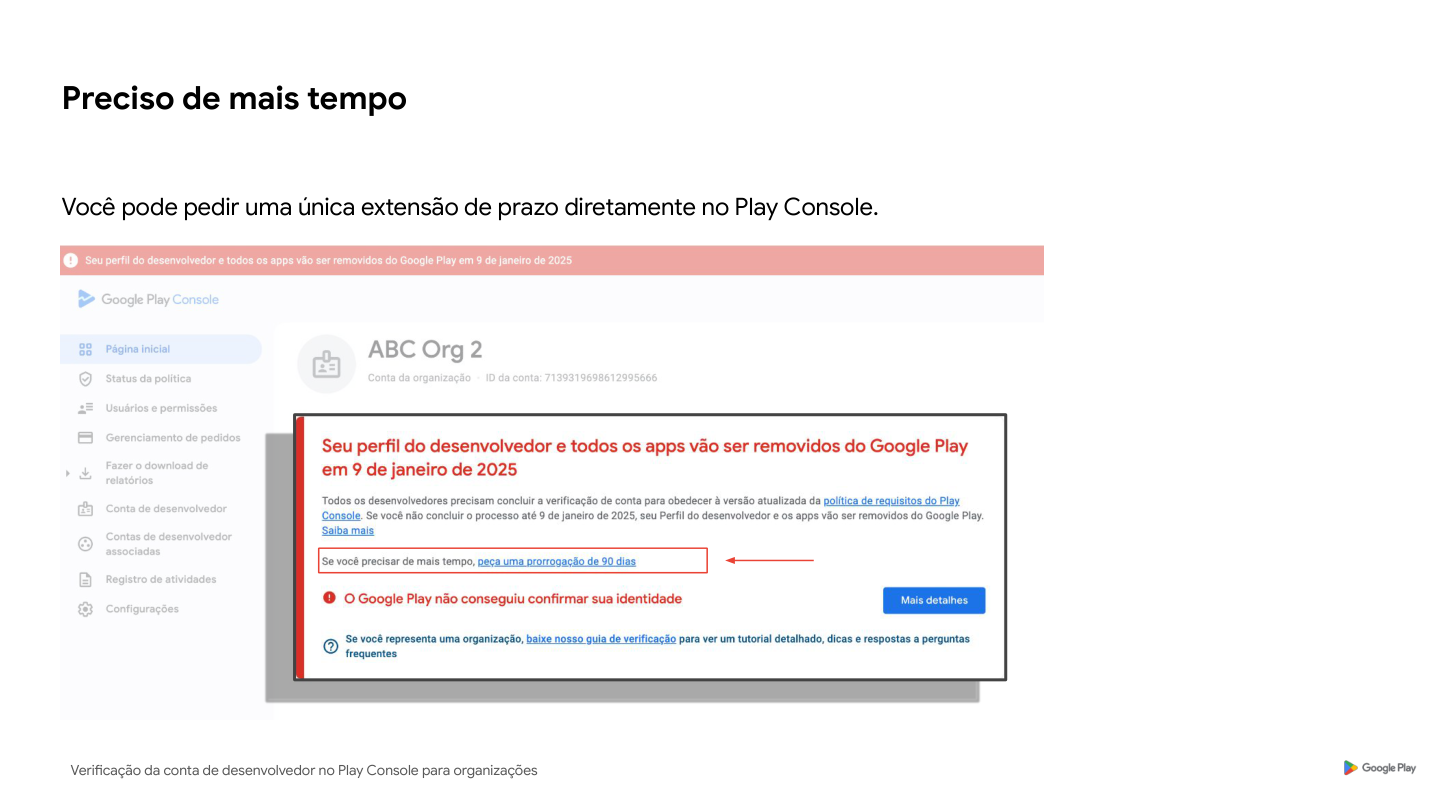
Option to request a deadline extension

Step 1: start verification and fill in organization details

1) Confirm the account type: “Organization” vs “Personal”

For formally incorporated companies, the correct type is Organization.

Why does this matter?
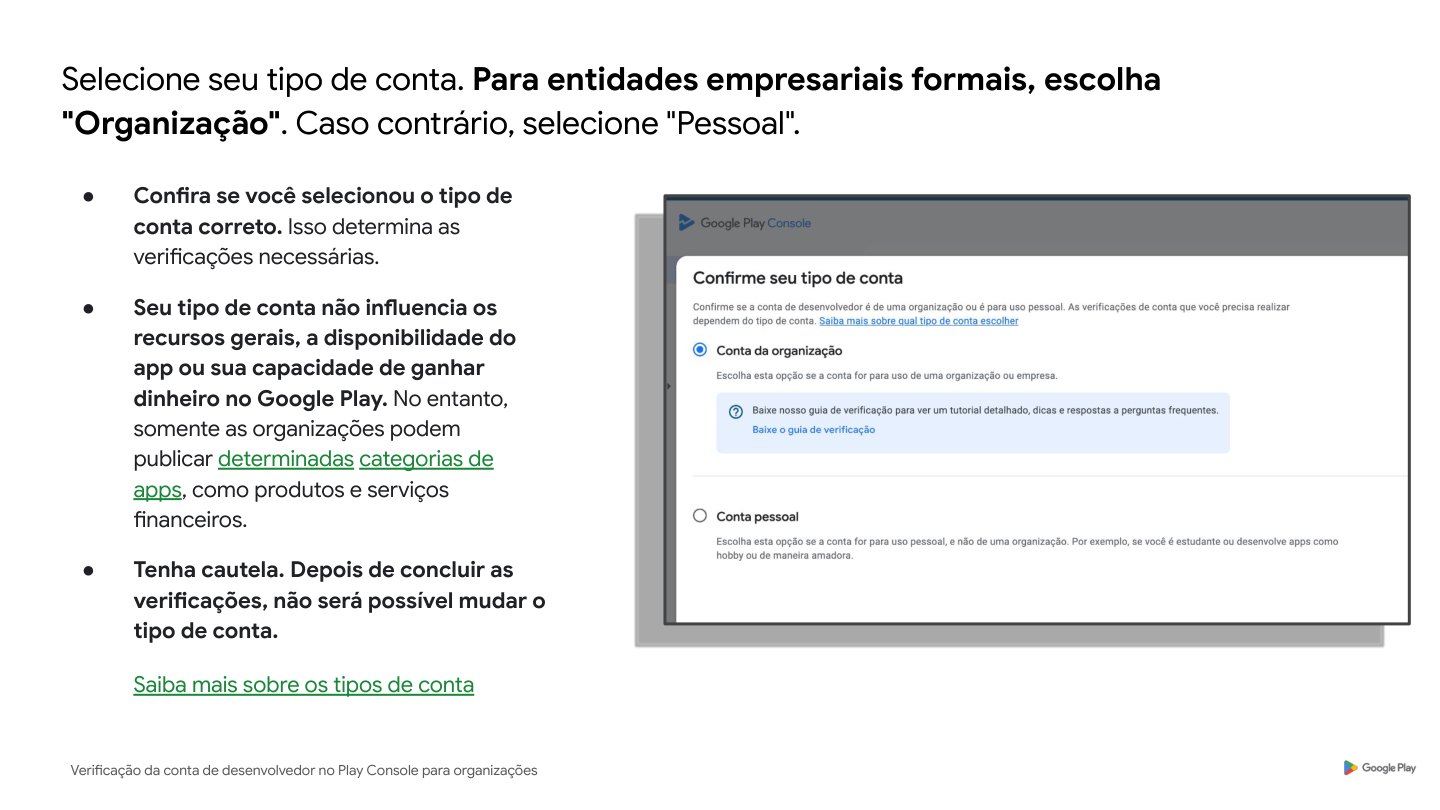
  • The account type defines which verification steps will be required.
  • After you complete verification, changing the account type is not easy.
  • The type doesn’t change the account’s general features, but it can affect requirements to publish certain categories.
Account type selection

2) Link a Google payments profile

Play Console asks you to link (or create) a Google payments profile to confirm organization information.

What really matters here:

  • The profile stores data that can be used across Google products (including organization details).
  • For verification, it is used to collect and validate information such as legal name, address, and D-U-N-S.
  • These details must be accurate and up to date.

Important tip: if the company already monetizes apps, there may be a payments profile used for revenue. In the verification flow, the selected profile can be used only to confirm organization details, and it doesn’t necessarily need to be the same one used for monetization.
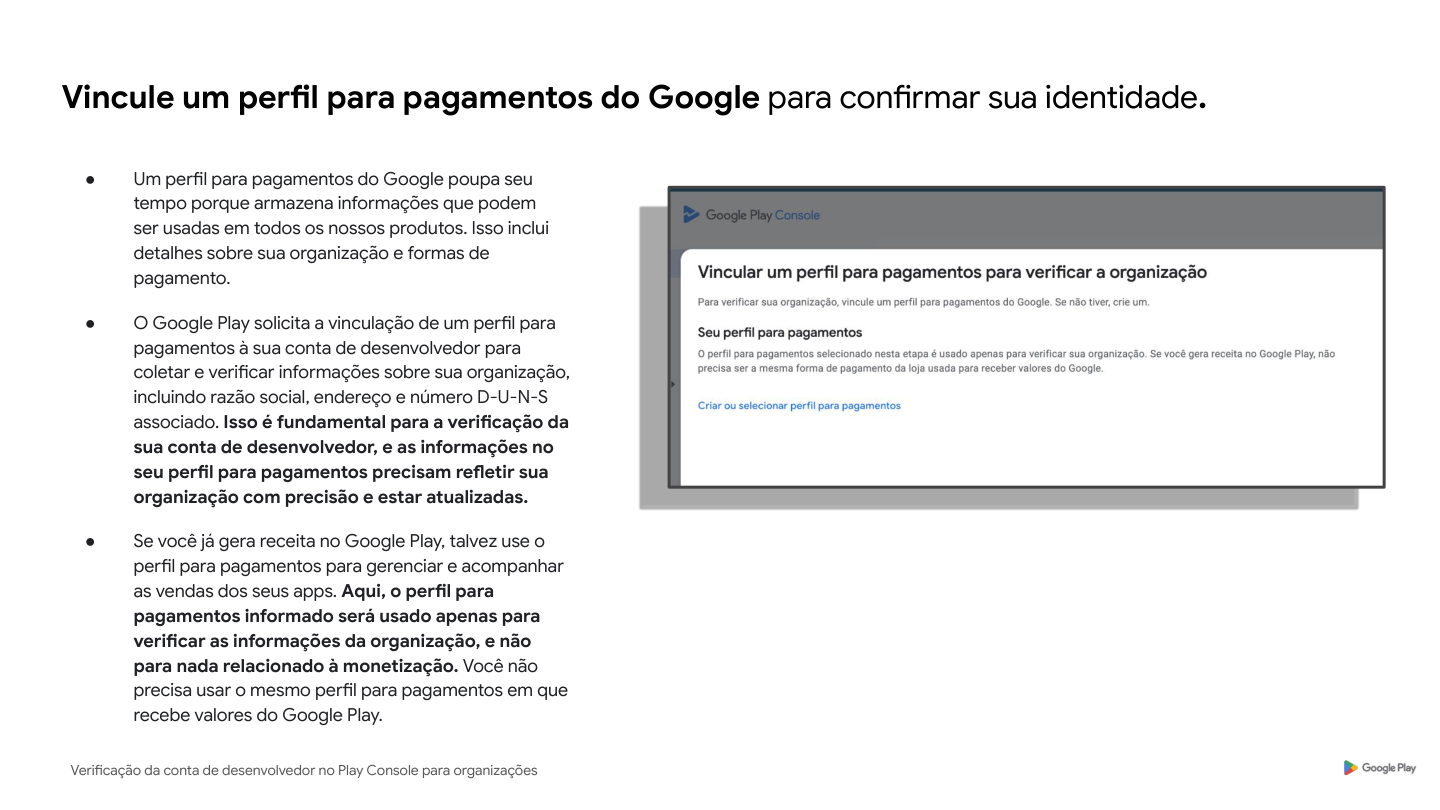
Linking a payments profile

3) Enter the D-U-N-S number (and make sure everything matches)

After the payments profile, you provide the D-U-N-S (a 9-digit identifier for organizations).

Critical points:
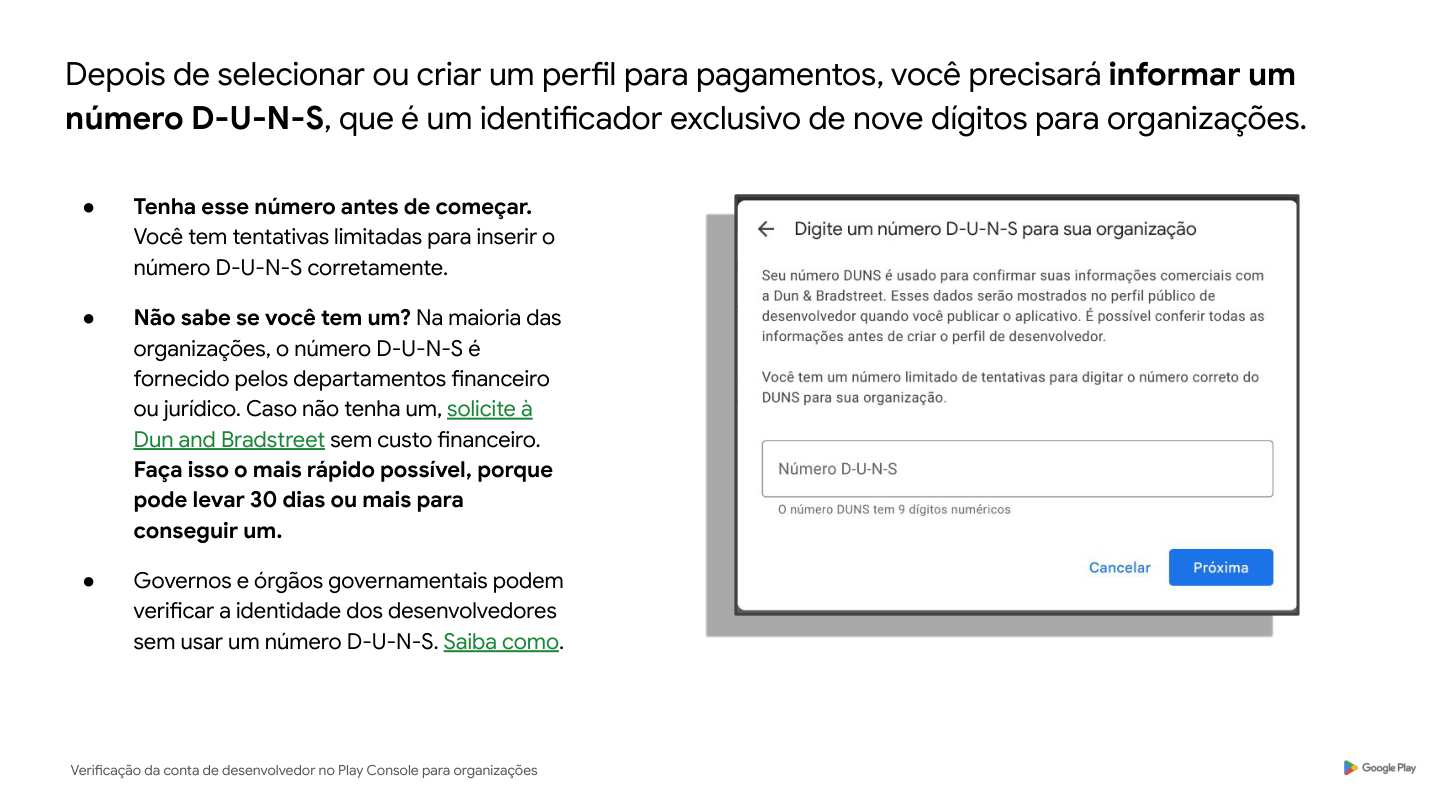
  • You have limited attempts to enter the D-U-N-S correctly.
  • If the company doesn’t have a D-U-N-S yet, it can take time to obtain (in some cases, 30 days or more). Plan ahead.
  • D-U-N-S returns associated business information that you’ll need to confirm.
  • For some government entities, there may be a verification flow without D-U-N-S (Play Console will show when that option is available).
D-U-N-S field in the flow

4) Golden rule: legal name and address must match

After entering the D-U-N-S, Play Console shows the business information it found. You must review and confirm it.

The rule that causes the most errors is simple:

The legal name and address from D-U-N-S must be the same as in the payments profile.

If there is any inconsistency, the flow can get stuck and you enter a correction loop. When Play Console detects discrepancies, it may give a deadline (for example, 28 days) to fix them before the account and apps face restrictions.
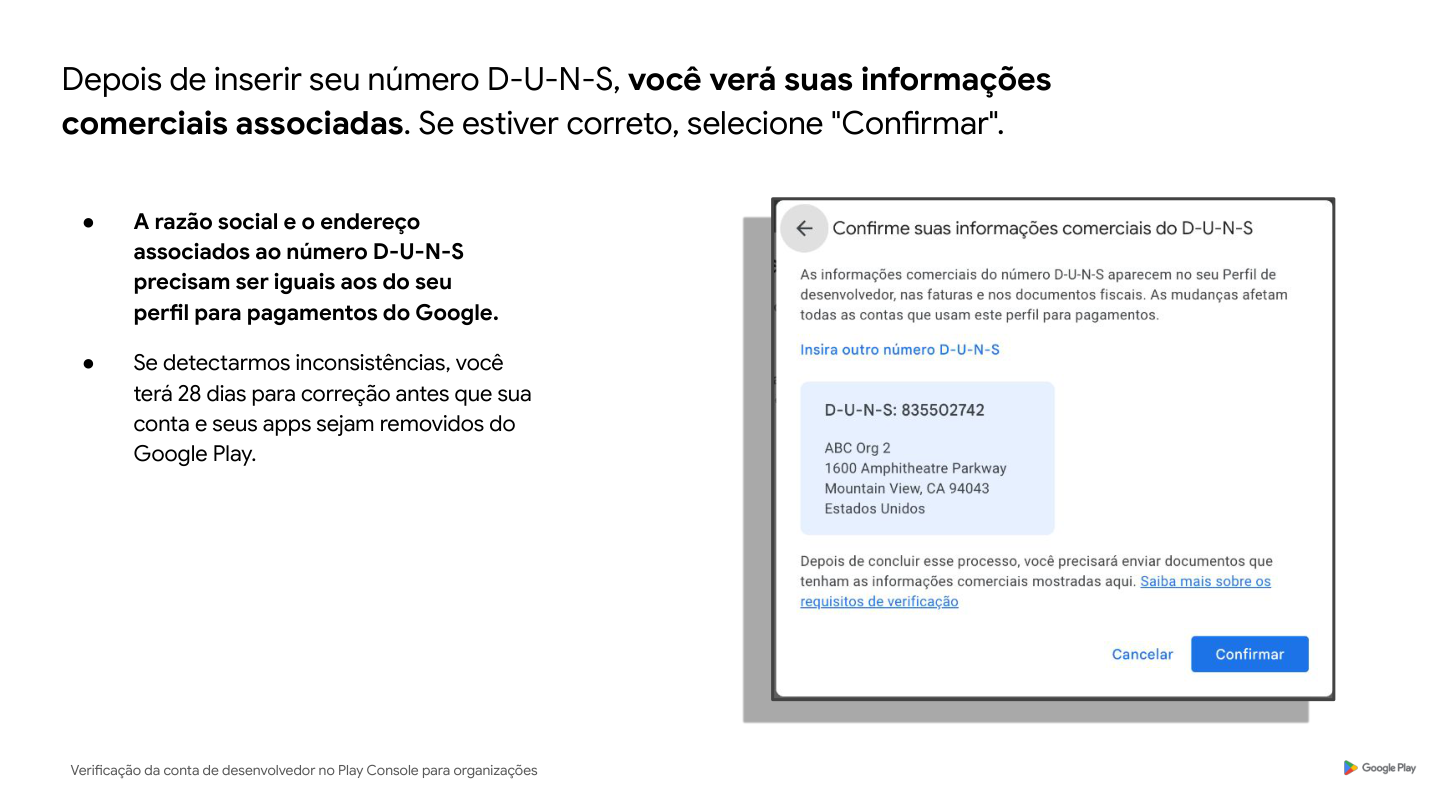
Confirmation screen for the retrieved details

5) Provide additional organization details (internal information)

Play Console asks for a few extra company details (for example, structure/size). Google uses this to better understand and verify the organization, and it does not appear publicly to users in the store.

6) Set up the account’s private contacts (so Google can reach the company)

You will enter a “private” email and phone number (not public) and they will be verified with a one-time password (OTP).

Best practices:
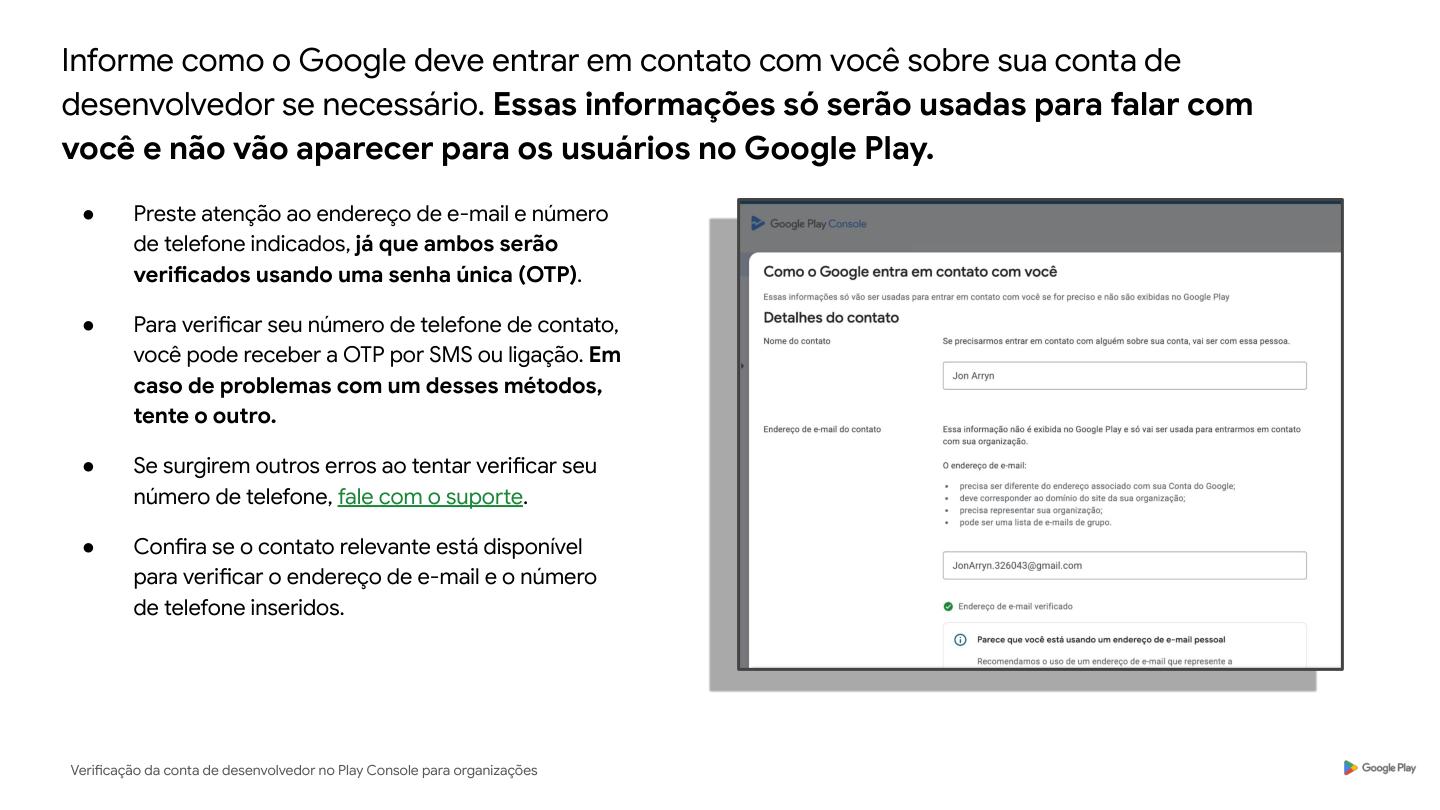
  • Have access to the email and phone at the moment of verification.
  • If SMS fails, try a phone call, and vice versa.
  • Avoid numbers that depend on IVR/phone systems that block automated calls.
Private contact details

7) Set up the public contacts for the developer profile

Organization accounts must provide:

  • A public developer email
  • A public developer phone number

These details are visible on the public Google Play developer profile and are also verified via OTP.

At the end, Play Console shows a screen to review the public profile. Review carefully, because this is what end users will see.
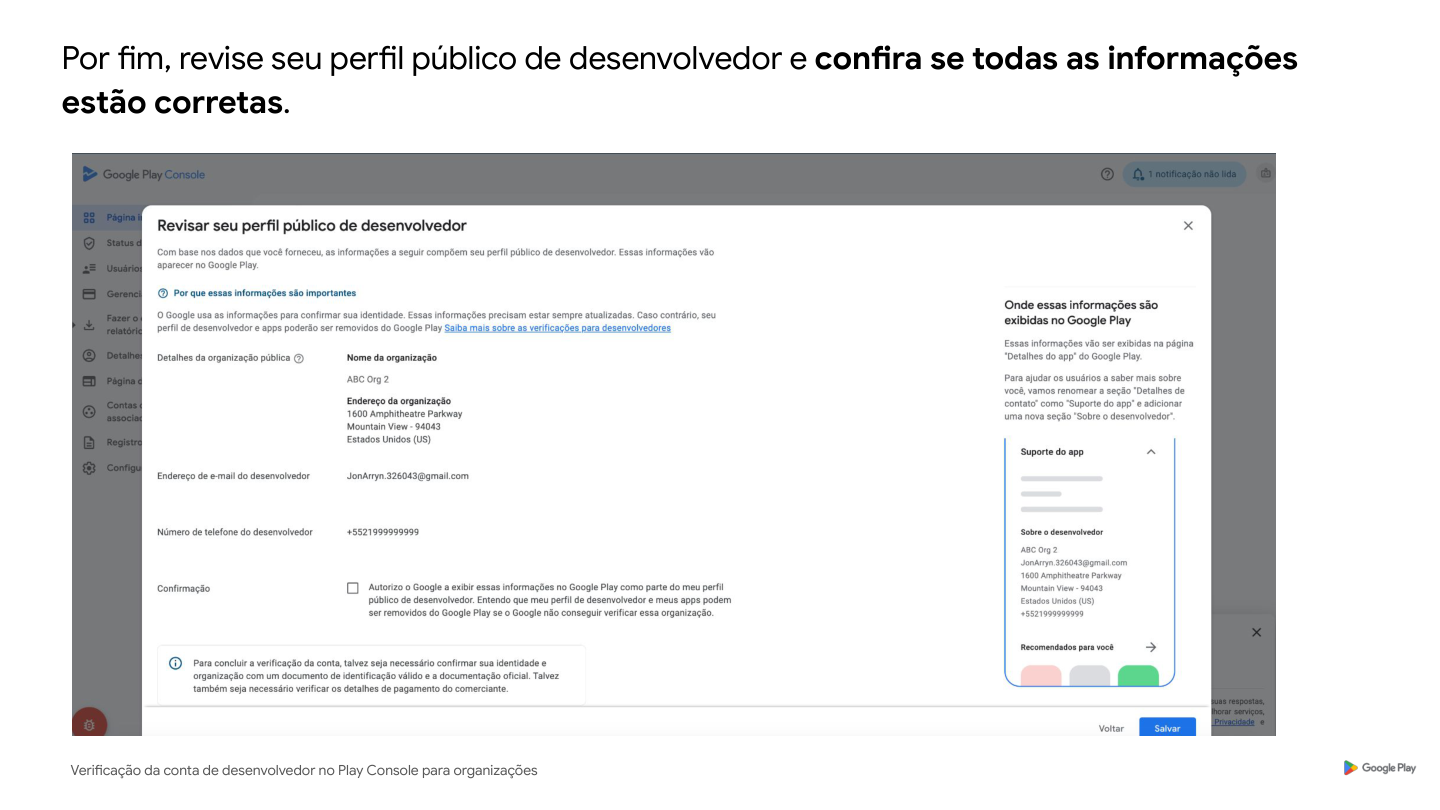
Public profile review

Step 2: upload documents to verify the organization and identity

After submitting organization details, you reach the document step. Play Console will let you know when the upload becomes available.

Here is the most important warning for this step:

Submitting unaccepted documents (or poor-quality images) is the #1 cause of verification failures. Altered, manipulated, or falsified documentation can lead to immediate removal of the account and apps.

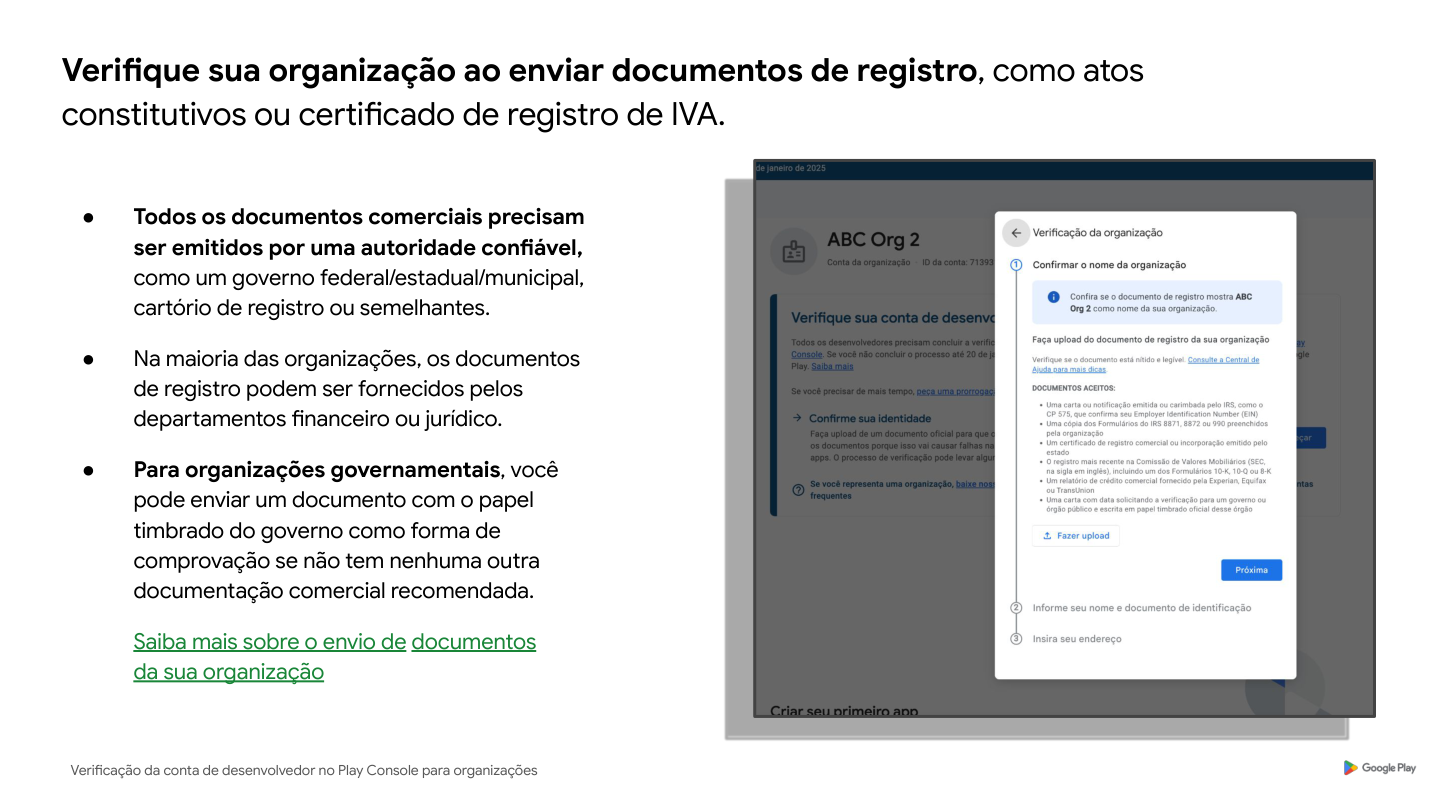
1) Upload organization registration documents

You will upload official documents that register the company (common examples: articles of incorporation, registration certificate, equivalent tax registration).

What to watch for:
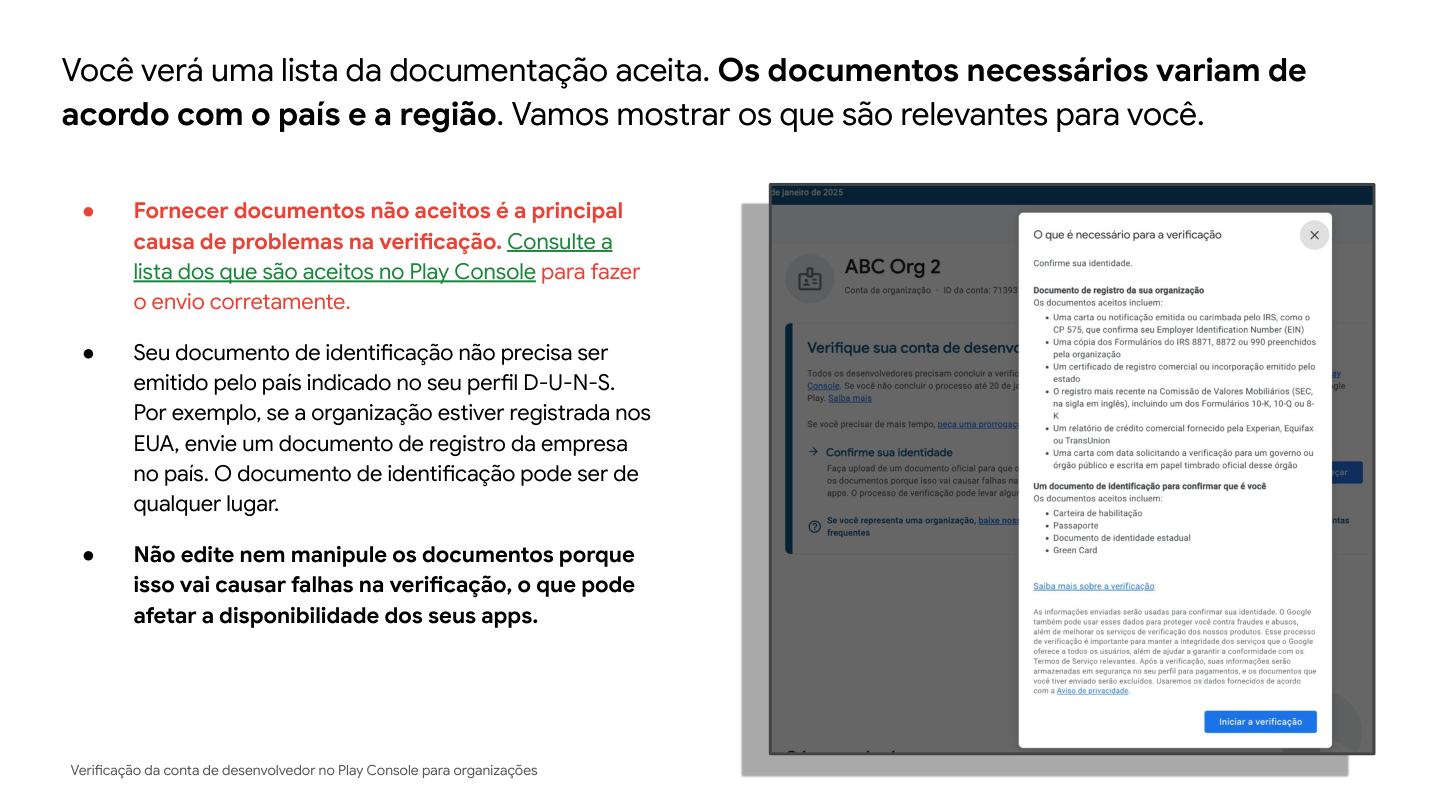
  • Documents must be issued by a trusted authority (government/notary/registration body or equivalent).
  • In many companies, these are held by legal/finance.
  • Play Console shows which documents are accepted depending on country/region.
List of accepted documents in Play Console Example screen to confirm the organization

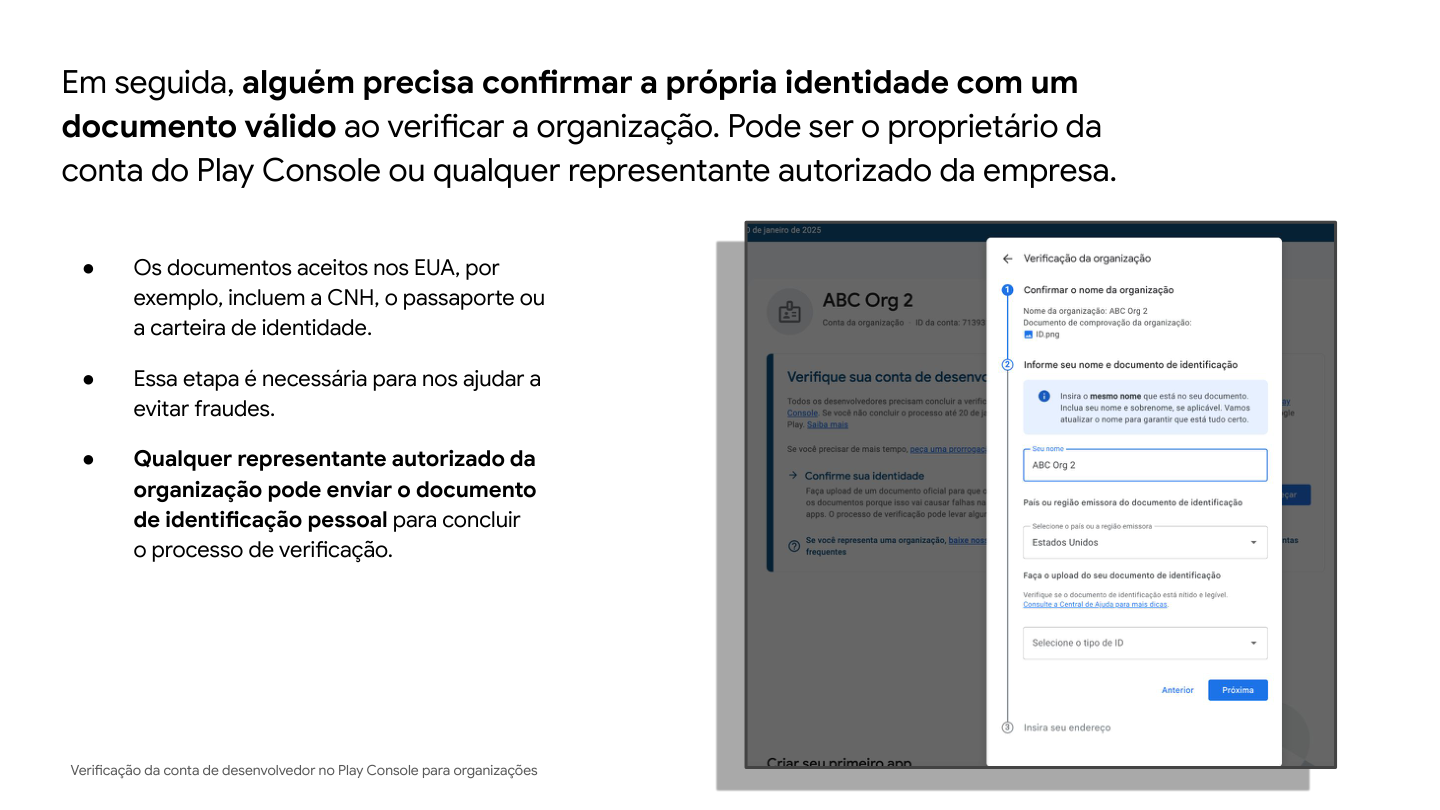
2) Verify the identity of an authorized representative

In addition to company documents, someone must confirm their identity using a valid ID document.

Who can do it?

  • The Play Console account owner, or
  • Any authorized representative of the organization (as long as they can prove it).

Points of attention:

  • Accepted document types vary by country/region.
  • Do not edit the image of the document.
  • Make sure the photo/scan is sharp, well lit, and shows all information clearly.
Identity verification for the representative

3) Type the name and address exactly as they appear on the document

The form asks you to type the name and address as they appear on the submitted ID. Here, typos (even small ones) can lead to rejection.

Why does Google ask for a personal ID document?

The idea is to reduce fraud and abuse on the platform. The official guidance is that the document is stored securely and is not shared with users.

Step 3: merchant payment method verification (if you generate revenue)

This step applies to accounts that generate revenue through Google Play (for example, through billing/monetization).

Play Console may ask you to verify the merchant payment method, typically by confirming a bank account using methods such as:

a) Deposit test (confirming a small deposit)
b) Uploading an official bank statement

While Google reviews it, the console may show a pending verification notice.

If merchant payment method verification fails, the owner usually receives an email notice and Play Console shows what happened and how to fix it.
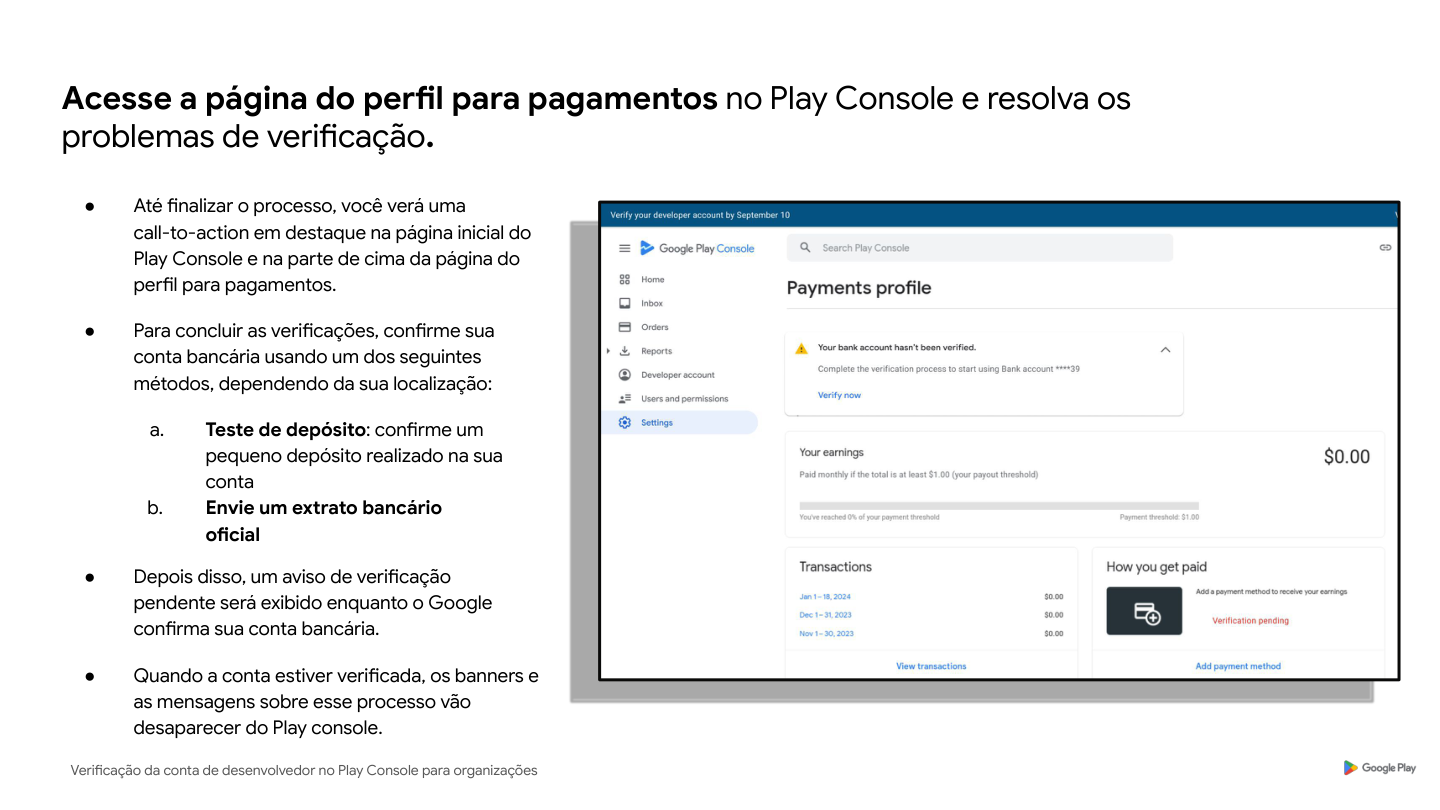
Merchant payment method verification

“It errored”: common problems and how to fix them

1) “I can’t find the account owner”

Only the owner can complete verification. If the person is not available or lost access:

  • Try to recover access immediately (before any other step).
  • If you need time, request an extension in Play Console (when available).
  • If the owner’s email no longer exists, the path usually involves support and proof.

1a) “My organization is a government entity and doesn’t have D-U-N-S”

In some cases, government organizations can complete verification without providing a D-U-N-S (when that option is already enabled in the flow).

If Play Console does not offer that alternative and you truly don’t have a D-U-N-S:

  • Make sure the account is correctly set up as an Organization.
  • Prepare a government institutional email domain and/or an institutional website, as this may be required to enable the flow.
  • As an organization document, you may need to submit proof on official letterhead (when applicable).

2) Problems receiving OTP (SMS/call)

The flow usually allows OTP via SMS or phone call.

Quick checklist:

  • Try switching between SMS and call.
  • Check carrier blocks/IVR/anti-spam.
  • Make sure the phone number is correct and has signal.

3) “My document was rejected”

Common causes:

  • Expired document.
  • Dark/blurry photo.
  • Part of the document covered/cropped.
  • Document not in the accepted list for your country/region.

The fix is usually simple: resend with a better image and an accepted document, without edits.

Important notes:

  • The account owner receives an email detailing the specific reason for rejection. Read it carefully before resubmitting.
  • You may have limited attempts to upload identity documents. If you hit the limit, you usually need to request a new attempt through support.

4) Organization name doesn’t match D-U-N-S

If the submitted document shows a name different from the one registered in D-U-N-S, verification can fail.

To avoid that:

  • Use documents that show the name exactly as it appears in D-U-N-S.
  • Avoid submitting documents for a parent company/holding/subsidiary if the D-U-N-S is registered under another name.

5) Authorized representative’s name typed differently from the document

The form needs to match the document exactly.

  • Check accents, abbreviations, and name order.
  • Copy it exactly as shown on the document.

6) Verification failed: check details and, if needed, appeal

When verification fails, Play Console shows the reason on the home page and the owner receives emails with details. In general, there is a “More details” button and an appeal option, where you explain the case and attach additional information.
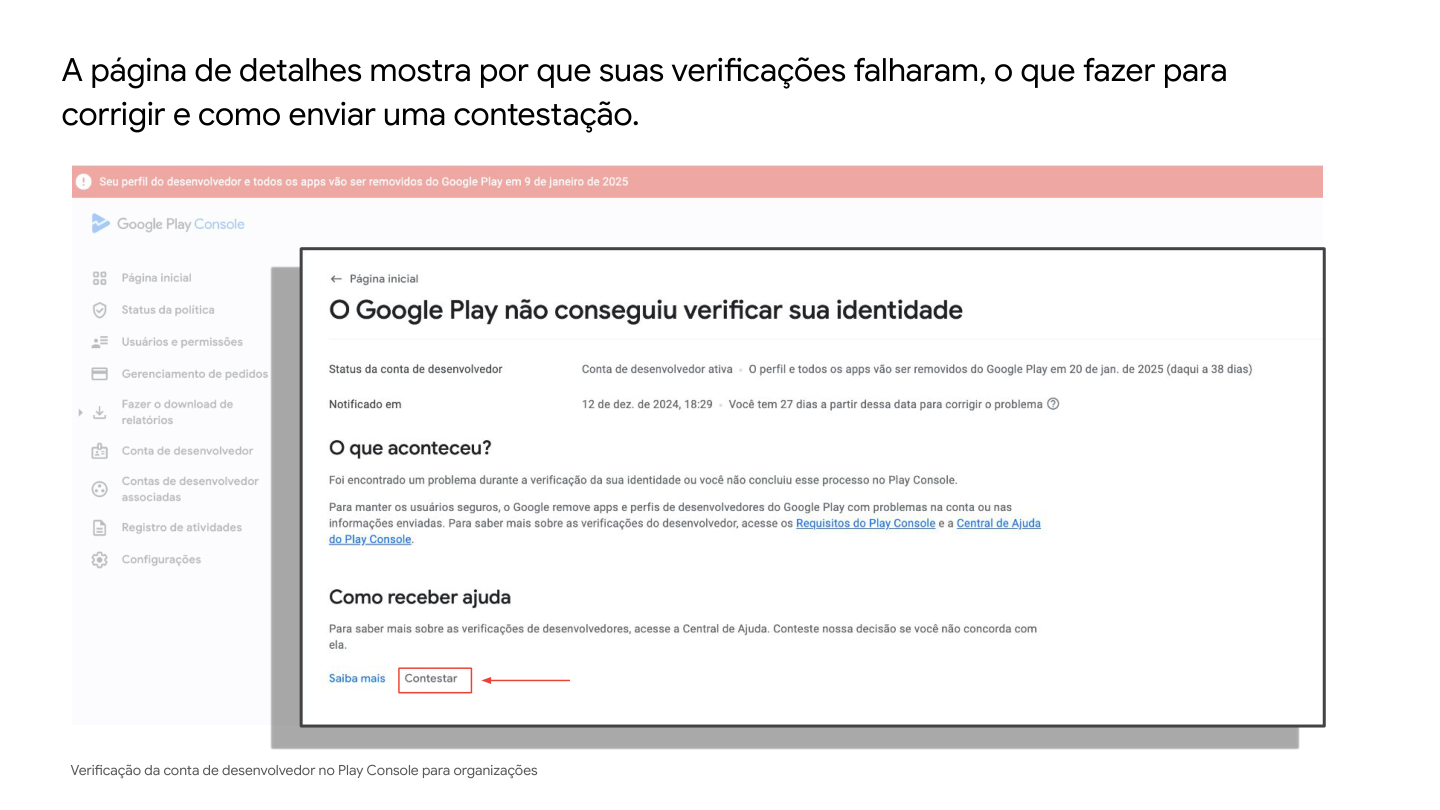
Failure details and appeal screen

Final checklist: how to know the account is ready to publish

Before you consider it “ready to publish”, confirm:

  1. The account type is correct (Organization).
  2. Payments profile is linked and has the correct legal name + address.
  3. D-U-N-S entered and confirmed (when applicable), with no discrepancies.
  4. Private contact (email + phone) verified via OTP.
  5. Public profile (email + phone) verified and reviewed.
  6. Organization documents accepted and representative identity verified.
  7. If the account monetizes: merchant payment method verified (when requested).
  8. The “Account details” page shows the organization as verified (and verification banners no longer appear).

If you will work with a partner (agency/consultancy/external team) to publish apps, finish this checklist first. It prevents publishing from turning into a race against the clock on launch day.

    Share

Subscribe to our newsletter

Similar posts

Reading time
7
min
Apple Developer account verification (Organization) and App Store Connect preparation

Accelerate your business with X-Apps

X-Apps is an IT provider partner and advised by
Receive our e-mails
Follow us on our social media
Your IT team. Software development on demand and allocation of professionals.
Contact us
comercial@x-apps.com.br+55 11 5083-0122

126 Rodrigo Vieira St

Jardim Vila Mariana. São Paulo, SP, Brazil.

Zip code: 04115-060

Sitemap
Terms of servicePrivacy Policy
Disponível em Português